This is an extension to the above tutorial.
In the images above you can see an example of what the blobby object looks like when you flood-fill some of the `bands` of color using a paint program. This was great for quickly showing how the effect is working, but obviously we want to be able to do something similar in BlitzMax in realtime! Although the previous program produced blobby objects, it rendered all the energy intensity levels rather than just a few. Rendering only a few of the levels would produce a `band` or boundary around the objects - similar to how the marching cubes algorithm produces a thin polygon mesh around the metaballs.
Since we are working with pixels as our blobby objects, we need a way of changing the pixel colors to turn the image into something more useful. At the moment we are rendering every level of energy intensity all at once, from 0 to 255 (black to gray). We need a way of drawing, or changing the drawing, to show only a certain range of intensities - a threshold or range of thresholds. A threshold is simply some numerical limit that we compare with the color of the pixel to decide whether to draw it or not. We can use two thresholds, also, to draw only within a range of values.
This currently isn't so easy with basic Max2D commands. We don't have a fast flood-fill command and using a flood-fill is not usually very efficient anyway. What we want to do is do some more `math` on the pixel values to change them into something useful. We want to take the image that we already have and draw more stuff on top of it that changes the pixel values, filters out pixels of certain colors and leaves more of a single `band` around the objects.
We can augment the basic Max2D commands with some extra direct OpenGL calls. These OpenGL commands, in particular glBlendFunc, define the rendering mode being used. BlitzMax's `LIGHTBLEND`, for example, is actually the same as `glBlendFunc GL_SRC_ALPHA,GL_ONE. You need not necessarily understand what this does. To simplify, it is telling OpenGL that all following drawing operations should blend the colors you are drawing with the colors that already exist, in various ways. In the case of LIGHTBLEND, the color of the rectangle being drawn is multiplied by the alpha value of the rectangle (usually 255 or white), and added to the destination color.
In the modified sourcecode below I have added several extra operations that use direct OpenGL calls. Using glBlendFunc I set up the drawing modes directly. The OpenGL calls used here are simple enough that they work well alongside standard Max2D routines, so I am still using DrawImage and DrawRect. As it stands, the OpenGL commands used here should not disrupt or interfere with Max2D's efforts to keep track of its own settings.
DrawRect is being used to draw a rectangle that covers the entire screen. With a certain blend mode active, drawing such a rectangle changes the values of the pixels accross the screen based on the effect of the `mode` and the color values of the rectangle. glColor4b is almost exactly the same as Max2D's `SetColor`, except it also sets the alpha value of what we're drawing. glEnable(GL_BLEND) and glDisable(GL_BLEND) simply switch on and off the blending operation (like switching between LIGHTBLEND and SOLIDBLEND).
The basic steps being performed in this new program are:
Draw the images of the energy fields with LIGHTBLEND. This creates our basic blobby object display, based on a curved blob gradient.
Add a value ($40) to each of the Red Green Blue and Alpha color components. This actually gets translated into $80 due to the blend mode and basically adds $80 to every pixel value. Since all the pixels brighter than white get turned into white, I am using this side-effect to act as a threshold to filter out all the energy levels higher than half strength - ie the areas inside the blobs. By adding $80 to the pixels, the threshold (the color band around the blobs) is formed where the energy level is at half strength, rather than where it is as full strength (white).
Next the screen is covered with 3 (or more) rectangles whose blend mode causes the pixel color values to be amplified. The effect of this is that the remaining gradient in our image is `compressed` from a wide band into a narrow band. This compression forms a more `solid` looking inner edge to the blob areas while still having several levels of gradient outside that area.
The remaining image is then inverted (like a `negative` effect) so that the areas that are now bright white, inside the blob, turn into black. It also flips the direction of the gradient so that the edges inside are fairly well defined and the areas outside form a gradual gradient.
The final step is to `brighten` the image by adding it to itself a few times, this just enhances the overall appearance and makes it more balanced, otherwise it appears to be dim as a result of the first step we did. By adding $40 ($80) to the values, and then inverting the screen, that acted to dim the color intensities so they need to be brightened.
What we're then left with is something looking like this:
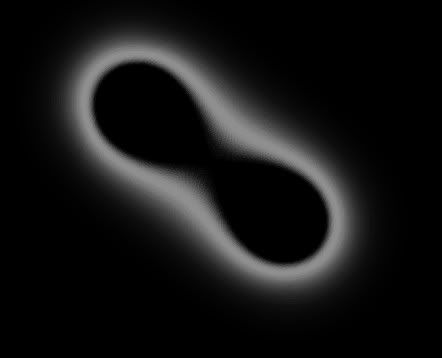
If you were to add more `passes` of the saturation step, which amplifies the colors and shrinks the gradient width, you can make this perimeter be even thinner and sharper. Anything beyond about 5 passes is usually a waste.
Please note that in this program, although we are setting the blend modes ourselves, we still need `SetBlend LIGHTBLEND` outside of the loop. Max2D has to keep track of the state of certain internal switches, and in this case it has to manage the state of the OpenGL `alpha test`. I don't want to interfere with or confuse Max2D so I am keeping that line in the program to swtich off the alpha test in a Max2D friendly way. If you remove it you get blobs filled with white instead of with black. Otherwise we would have to add extra code to preserve and restore the internal state.
One other thing you can try is to generate an energy field image based on squares instead of circles. It gives surprisingly different results than you might expect - which I discovered by accident. Blobs appear to form with concave boundaries rather than convex, as if the blob objects are actually outside the blobs. It also forms blobs of infinite different sizes and curves, where the blobs seem to `bubble up` out of nowhere like bubbles. You will likely need to render several blob objects at once to see the coolness of the effect.
And of course, there is animation. You could save the energy field image as a picture and load it into a graphics package. You can manipulate the image with image processing and, if possible, animate that manipulation. The resulting animation sequence then translates directly into a modification of the blob shapes. Cyclic animations are probably best in terms of memory use. You need to modify the image using operations that `move the pixels around` because you want to still have the proper gradient curve being used.
You should now have a program that will draw nice bands around blobby objects, which you could use for example in a game or for some other purpose.
Enjoy.
Regards,
AngelDaniel.
In the images above you can see an example of what the blobby object looks like when you flood-fill some of the `bands` of color using a paint program. This was great for quickly showing how the effect is working, but obviously we want to be able to do something similar in BlitzMax in realtime! Although the previous program produced blobby objects, it rendered all the energy intensity levels rather than just a few. Rendering only a few of the levels would produce a `band` or boundary around the objects - similar to how the marching cubes algorithm produces a thin polygon mesh around the metaballs.
Since we are working with pixels as our blobby objects, we need a way of changing the pixel colors to turn the image into something more useful. At the moment we are rendering every level of energy intensity all at once, from 0 to 255 (black to gray). We need a way of drawing, or changing the drawing, to show only a certain range of intensities - a threshold or range of thresholds. A threshold is simply some numerical limit that we compare with the color of the pixel to decide whether to draw it or not. We can use two thresholds, also, to draw only within a range of values.
This currently isn't so easy with basic Max2D commands. We don't have a fast flood-fill command and using a flood-fill is not usually very efficient anyway. What we want to do is do some more `math` on the pixel values to change them into something useful. We want to take the image that we already have and draw more stuff on top of it that changes the pixel values, filters out pixels of certain colors and leaves more of a single `band` around the objects.
We can augment the basic Max2D commands with some extra direct OpenGL calls. These OpenGL commands, in particular glBlendFunc, define the rendering mode being used. BlitzMax's `LIGHTBLEND`, for example, is actually the same as `glBlendFunc GL_SRC_ALPHA,GL_ONE. You need not necessarily understand what this does. To simplify, it is telling OpenGL that all following drawing operations should blend the colors you are drawing with the colors that already exist, in various ways. In the case of LIGHTBLEND, the color of the rectangle being drawn is multiplied by the alpha value of the rectangle (usually 255 or white), and added to the destination color.
In the modified sourcecode below I have added several extra operations that use direct OpenGL calls. Using glBlendFunc I set up the drawing modes directly. The OpenGL calls used here are simple enough that they work well alongside standard Max2D routines, so I am still using DrawImage and DrawRect. As it stands, the OpenGL commands used here should not disrupt or interfere with Max2D's efforts to keep track of its own settings.
DrawRect is being used to draw a rectangle that covers the entire screen. With a certain blend mode active, drawing such a rectangle changes the values of the pixels accross the screen based on the effect of the `mode` and the color values of the rectangle. glColor4b is almost exactly the same as Max2D's `SetColor`, except it also sets the alpha value of what we're drawing. glEnable(GL_BLEND) and glDisable(GL_BLEND) simply switch on and off the blending operation (like switching between LIGHTBLEND and SOLIDBLEND).
The basic steps being performed in this new program are:
Draw the images of the energy fields with LIGHTBLEND. This creates our basic blobby object display, based on a curved blob gradient.
Add a value ($40) to each of the Red Green Blue and Alpha color components. This actually gets translated into $80 due to the blend mode and basically adds $80 to every pixel value. Since all the pixels brighter than white get turned into white, I am using this side-effect to act as a threshold to filter out all the energy levels higher than half strength - ie the areas inside the blobs. By adding $80 to the pixels, the threshold (the color band around the blobs) is formed where the energy level is at half strength, rather than where it is as full strength (white).
Next the screen is covered with 3 (or more) rectangles whose blend mode causes the pixel color values to be amplified. The effect of this is that the remaining gradient in our image is `compressed` from a wide band into a narrow band. This compression forms a more `solid` looking inner edge to the blob areas while still having several levels of gradient outside that area.
The remaining image is then inverted (like a `negative` effect) so that the areas that are now bright white, inside the blob, turn into black. It also flips the direction of the gradient so that the edges inside are fairly well defined and the areas outside form a gradual gradient.
The final step is to `brighten` the image by adding it to itself a few times, this just enhances the overall appearance and makes it more balanced, otherwise it appears to be dim as a result of the first step we did. By adding $40 ($80) to the values, and then inverting the screen, that acted to dim the color intensities so they need to be brightened.
What we're then left with is something looking like this:
If you were to add more `passes` of the saturation step, which amplifies the colors and shrinks the gradient width, you can make this perimeter be even thinner and sharper. Anything beyond about 5 passes is usually a waste.
Please note that in this program, although we are setting the blend modes ourselves, we still need `SetBlend LIGHTBLEND` outside of the loop. Max2D has to keep track of the state of certain internal switches, and in this case it has to manage the state of the OpenGL `alpha test`. I don't want to interfere with or confuse Max2D so I am keeping that line in the program to swtich off the alpha test in a Max2D friendly way. If you remove it you get blobs filled with white instead of with black. Otherwise we would have to add extra code to preserve and restore the internal state.
One other thing you can try is to generate an energy field image based on squares instead of circles. It gives surprisingly different results than you might expect - which I discovered by accident. Blobs appear to form with concave boundaries rather than convex, as if the blob objects are actually outside the blobs. It also forms blobs of infinite different sizes and curves, where the blobs seem to `bubble up` out of nowhere like bubbles. You will likely need to render several blob objects at once to see the coolness of the effect.
And of course, there is animation. You could save the energy field image as a picture and load it into a graphics package. You can manipulate the image with image processing and, if possible, animate that manipulation. The resulting animation sequence then translates directly into a modification of the blob shapes. Cyclic animations are probably best in terms of memory use. You need to modify the image using operations that `move the pixels around` because you want to still have the proper gradient curve being used.
You should now have a program that will draw nice bands around blobby objects, which you could use for example in a game or for some other purpose.
Enjoy.
'Blobby objects with BlitzMax using Max2D and some direct OpenGL

'Some special numbers
Local ballsize:Int=512
Local ballsizehalf:Int=ballsize/2

'Set up the display
Graphics 800,600,0
Cls

'Work out what the dividers needs to be
Local balldivider:Float
If ballsize=128 Then balldivider=64 '8x8
If ballsize=256 Then balldivider=256 '16x16
If ballsize=512 Then balldivider=1024 '32x32
Local lineardivider:Float
If ballsize=128 Then lineardivider=0.5
If ballsize=256 Then lineardivider=1
If ballsize=512 Then lineardivider=2

'Render the gradient image
For Local r:Float=1 To ballsize-1 Step 0.5
	Local level:Float=r
	level:*level
	level=level/balldivider
	SetColor level,level,level 'For blobby gradient shape
	'SetColor r/lineardivider,r/lineardivider,r/lineardivider 'For linear gradients
	DrawOval r/2,r/2,ballsize-r,ballsize-r
Next

'Turn it into an image
AutoMidHandle True
Local img:TImage=CreateImage(ballsize,ballsize,1,FILTEREDIMAGE)
GrabImage(img,0,0,0)

'Set the blend mode
SetBlend LIGHTBLEND 'Still need this to deal with the alpha test

'Keep drawing the image until you press Escape
Repeat
	Cls
	glEnable(GL_BLEND)
	glBlendFunc(GL_SRC_ALPHA,GL_ONE)
	DrawImage img,400,300
	DrawImage img,MouseX(),MouseY()
	glBlendFunc(GL_SRC_ALPHA,GL_ONE)
	glColor4b($40,$40,$40,$40)
	DrawRect 0,0,800,600
	glBlendFunc(GL_SRC_ALPHA_SATURATE,GL_DST_COLOR)
	glColor4b(0,0,0,$FF)
	Local Counter:Int
	For Counter:Int=1 To 3
		DrawRect 0,0,800,600
	Next
	glBlendFunc(GL_ONE_MINUS_DST_COLOR,GL_ONE_MINUS_DST_COLOR)
	glColor4b($0,$0,$0,$0)
	DrawRect 0,0,800,600
	glBlendFunc(GL_DST_COLOR,GL_DST_COLOR)
	glColor4b($FF,$FF,$FF,$FF)
       SetColor $FF,$FF,$FF
	For Counter:Int=1 To 3
		DrawRect 0,0,800,600
	Next
	glDisable(GL_BLEND)
	Flip
Until KeyHit(KEY_ESCAPE)
Regards,
AngelDaniel.